> For the complete documentation index, see [llms.txt](https://help.alternativepayments.io/llms.txt). Markdown versions of documentation pages are available by appending `.md` to page URLs; this page is available as [Markdown](https://help.alternativepayments.io/integrations/psa-integration-guides/halopsa/halopsa-quotations-integration-set-up-guide.md).
# HaloPSA Quotations Integration Set-Up Guide
Your step-by-step guide to accepting quotes with HaloPSA Quotations & Alternative Payments.
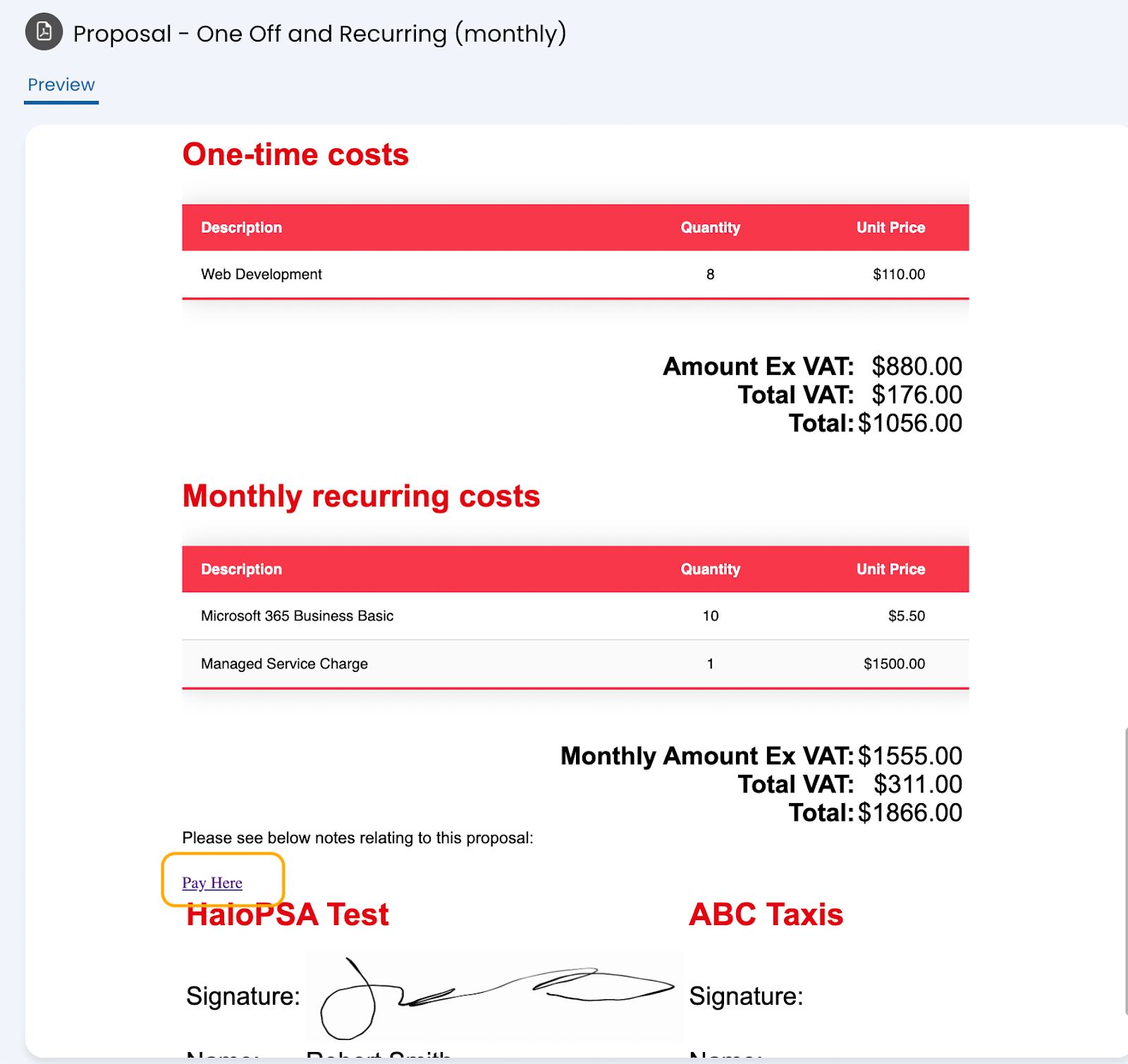
**How to Set up Your HaloPSA Quotations**
Connecting HaloPSA’s Quotations with Alternative Payments is quick and seamless, allowing you to maintain your existing workflows while enhancing payment flexibility for your customers. Follow these steps to get started:
{% hint style="warning" %}
**Prerequisites:** Custom Invoices must be enabled in your dashboard (Team Preferences > [Preferences > Invoices](https://app.alternativepayments.io/dashboard/team/preferences?pageTab=invoices)). The customer must already have an account in Alternative Payments.
{% endhint %}
**1. Copy your Alternative Payments billing link.**
* Login to your Alternative Payments dashboard, [app.alternativepayments.io](https://app.alternativepayments.io/)
* Navigate to Accounts Receivable - [Invoices](https://app.alternativepayments.io/dashboard/invoices) from the side menu
* Click on the billing link at the top of the screen, under the Invoices header
**2. Edit Your PDF Templates.**
* Log into your HaloPSA instance
* Navigate to Configurations > Quotations > General Settings
* Scroll down to Edit Quote PDF Templates
**3. Insert your Alternative Payments Billing Link into your templates.**
* Select the template you want to add your custom payment link to. Note: You will need to do this for every single template if applicable.
* Click on Edit and navigate to the Pages section and click on the edit pencil icon next to the section you wish to input the custom link.
* Copy and paste the following HTML code into your preferred section of the Core Template HTML:
* \
* Save your updates
{% hint style="info" %}
Note: You must replace \[billing link] with the link you copied from your Alternative Payments dashboard in Step 1. You can also replace the Pay Here text with copy of your own choosing (ex: Pay Now, Click Here to Pay, etc.)
{% endhint %}
**4. You’re all set! 🎉**
Your customers can now make payment once they have accepted a quote from HaloPSA Quoting They will be redirected to make a payment using your custom billing link.
#### Customer Experience Overview
1. Your customer receives a quote from you.
2. Your customer accepts the quote.
3. Your customer is prompted to make a payment using your branded payment link.
4. Once payment is made, your customer receives confirmation of the payment
5. (Partner experience) An Alternative invoice is created to record the payment. You can view this payment in the “[Transactions](https://app.alternativepayments.io/dashboard/all-transactions)” section of your Alternative Payments dashboard.
\
\
\
\
\
\
---
# Agent Instructions
This documentation is published with GitBook. GitBook is the documentation platform designed so that both humans and AI agents can read, navigate, and reason over technical content effectively. Learn more at gitbook.com.
## Querying This Documentation
If you need additional information that is not directly available in this page, you can query the documentation dynamically by asking a question.
Perform an HTTP GET request on the current page URL with the `ask` query parameter, and the optional `goal` query parameter:
```
GET https://help.alternativepayments.io/integrations/psa-integration-guides/halopsa/halopsa-quotations-integration-set-up-guide.md?ask=&goal=
```
`ask` is the immediate question: it should be specific, self-contained, and written in natural language.
`goal` is optional and describes the broader end goal you are ultimately trying to accomplish on behalf of the user. GitBook uses it to tailor the answer towards what is most useful for that goal.
The response will contain a direct answer to the question and relevant excerpts and sources from the documentation.
Use this mechanism when the answer is not explicitly present in the current page, you need clarification or additional context, or you want to retrieve related documentation sections.